


EasyCut - Video Editor & Maker
4.53.03K Reviews
App Specs
- Version
- 2.1.0.1089
- Updated On
- License
- Free
- Downloads
- 100,000,000+
- Developer
- Great Talent Video Inc. Video Editor App
- Categories
- Video Players & Editors
- Platform
- Android
Screenshots

 Analysis by AppCompare
When I choose a phone video editor, I first ask what I actually need to finish: a quick cut for a group chat, a polished social post, or a layered project I may want to revise later. EasyCut - Video Editor & Maker is aimed at people who want to make videos on a phone without starting in a complex editing workspace. I see its appeal in the mix of approachable editing and more ambitious tools, though that balance matters most if you are happy to work within a mobile app.
It is a free video-editing app from Great Talent Video Inc. Video Editor App, with optional in-app purchases ranging from $0.99 to $23.99 per item. The app is rated Mature 17+, so it may not be suitable for younger users. Its average rating is 4.5 from around 456,000 ratings, and it has been installed over 50 million times. Those figures suggest a broad audience, but they do not tell me whether its editing style suits every project; the useful question is whether its tools match your own workflow.
Choosing a phone editor that fits your workflow
EasyCut is best understood as a flexible creator’s toolkit rather than a replacement for a desktop editing suite. It covers straightforward clip assembly and also offers features such as keyframes, chroma key, and picture-in-picture. That range gives a casual editor room to experiment, but it also means you should decide whether you want quick templates and simple finishing or precise control over a longer, more involved edit.
Getting Started with EasyCut
I’ll be honest, the first thing that caught my attention was how user-friendly EasyCut is. As soon as you open the app, you're greeted with a straightforward interface that even the most tech-challenged person can navigate. No complicated menus or overwhelming options. Just a clear path to get you started on your video editing journey.
Once you import your clips, you’ll find a range of basic editing tools like trimming, cutting, and merging. It’s all designed to make video editing feel less like rocket science and more like a fun creative project. And if you’re like me, you’ll appreciate how intuitive it all feels.
Features That Stand Out
Now, let’s talk features. EasyCut isn’t just about slapping clips together. It offers a suite of editing tools that are surprisingly robust for a mobile app.
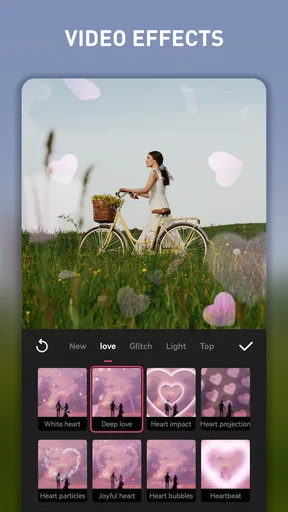
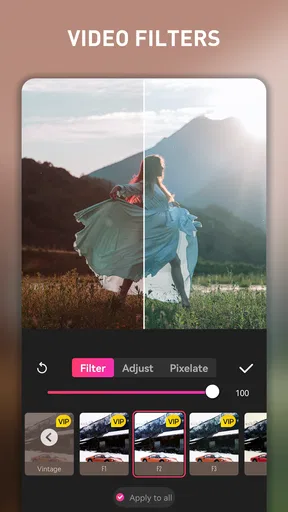
Filters and Effects: Want to add some flair to your videos? EasyCut has a plethora of filters and effects that you can apply with just a tap. Whether you’re going for a vintage vibe or something more modern, there’s likely a filter to match your vision.
Worth Reading Before You Choose

Flipboard Shows What News Apps Must Do Beyond the Feed

Switching to Android Auto Means Rethinking Your Driving Routine

Google Calendar Makes a Crowded Week Easier to Manage

Ludo King Makes the Most of the Minutes Between Plans

Baby Panda World Brings Quick Play to Modern Phones, but Its Game Library Feels Busy

ESPN’s Live Game View Makes Following Close Games Easier
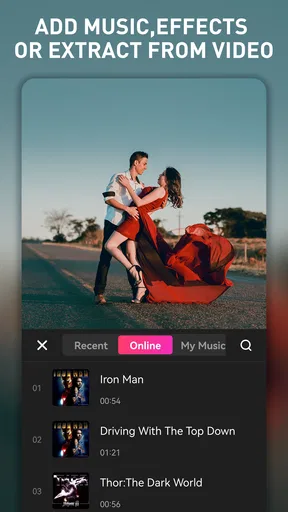
Music and Sound Effects: No video is complete without the perfect soundtrack. EasyCut offers a library of royalty-free music and sound effects that you can easily incorporate into your projects. Plus, you can adjust the volume and timing to ensure everything syncs perfectly.
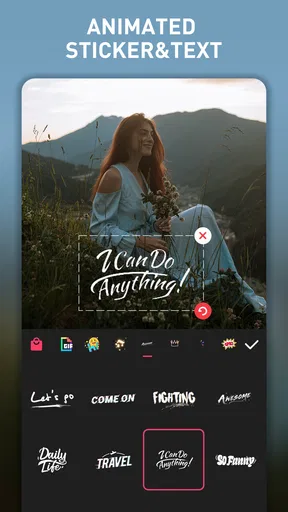
Text and Stickers: Adding text and stickers to your videos is as easy as pie. You can customize fonts, colors, and animations to make your text pop. And the sticker library? Let’s just say you’ll have plenty of options to play around with.
Where more ambitious edits become possible
For those who want to take their video editing to the next level, EasyCut doesn’t disappoint. It offers more advanced tools like:
- Keyframe Animation: This feature lets you animate any element in your video, giving you the power to create dynamic, attention-grabbing content.
- Chroma Key: Ever wanted to experiment with green screen effects? EasyCut’s Chroma Key tool allows you to remove backgrounds and replace them with whatever your imagination conjures.
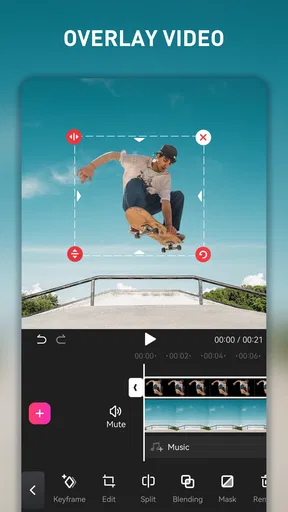
- Picture-in-Picture: This is perfect for creating reaction videos or tutorials, where you need to show multiple clips simultaneously.
These features, combined with the app’s smooth performance, make it a strong contender for anyone serious about mobile video editing.
Small workflow choices that improve the result
A practical way to keep a project tidy is to decide on its shape before adding decorative effects. For a short birthday montage, for example, I would select the strongest moments first, trim away pauses, and arrange the clips into a clear beginning, middle, and finish. Only then would I settle on a filter, add a title, and choose music. That order makes it easier to judge whether the effects support the story or merely compete with it.
Keyframes are most useful when they solve a specific problem: moving a title into view, drawing attention to a detail, or giving a still image a little motion. I would use them sparingly in a quick social clip. A handful of deliberate movements can make the edit feel considered; animating every element can make it feel busy and can add extra revision work.
For picture-in-picture, think about where the viewer’s eye should go. In a tutorial, the main footage can show the task while a smaller view shows the presenter, but the smaller image should not cover the action the viewer needs to follow. Chroma key also benefits from restraint: a clean, evenly lit background is easier to work with than a cluttered one, and a replacement background looks more convincing when its brightness and general tone make sense beside the subject.
A realistic day-to-day project
Imagine I have filmed a few short clips while making dinner and want to send a compact recipe video to friends. I can cut out the waiting and setup, put the useful steps in order, add a brief text label for an ingredient, and use a music track at a level that does not drown out spoken instructions. The value here is not that every edit becomes professional; it is that I can turn scattered phone footage into something with a clear purpose without moving to a computer.
The same approach suits a holiday recap, a pet clip, or a quick demonstration for a small online audience. Templates can help when I want a ready-made visual direction, but I would still check whether the pacing and text fit my footage. A template is a starting point, not a substitute for choosing the right clips or making sure captions remain readable on a phone screen.
How it compares with other editing approaches
Compared with a basic gallery editor, EasyCut offers more room to combine clips, sound, text, and layered visuals. That extra flexibility is useful when a simple trim is not enough, but it also asks for more decisions. If all I need is to shorten one clip or rotate it, the built-in editor on a phone may be quicker and less distracting.
Against other dedicated mobile editors, the decision is less about a universal winner and more about the kind of editing I want to do. A template-led tool may suit someone who wants a fast, highly guided result; a timeline-focused editor may be a better fit for someone who values detailed manual control. EasyCut sits between those habits, offering an accessible route into editing while exposing tools that can support more layered ideas. I would compare the feel of each app’s workflow rather than assume that a longer feature list guarantees a better fit.
There is also a practical difference between a phone-first project and work that needs exacting control. On a small screen, arranging many layers or timing several elements precisely can become fiddly, and long sessions are less comfortable than editing on a larger display. I would choose a desktop editor for a substantial film, demanding audio work, or a project that needs careful, repeated revisions. EasyCut makes more sense when convenience and a finished mobile-sized video matter more than an expansive workspace.
What to consider before committing to a project
EasyCut is free to download, but some items are available through in-app purchases, so I would treat the free starting point as a chance to test the workflow rather than assume every option is included. Before building a large project around a particular template or effect, check whether the specific item you want is available to you. That small check can prevent the frustration of planning an edit around something you later discover you do not want to purchase.
The app was released on June 19, 2020, and its current version is 1.8.9.2023. It requires Android 6.0 or later. Those details are useful when deciding whether an older Android device can run it, but editing itself can still feel more demanding than simply watching video. If your phone is short on free storage or already struggles with media tasks, I would keep a project modest and export a short test before investing time in a longer edit.
One question people often have is whether they can make something worthwhile without paying. Since the app is free and purchases are optional, I would begin with a small, uncomplicated edit and see whether the tools I want are available without an extra purchase. Another is whether it suits someone new to editing: the approachable starting point makes it reasonable to try, while keyframes and layered effects can be learned gradually rather than used immediately.
For sharing, I would also watch the final export instead of assuming that an edit will look identical everywhere. Check that the text is not too close to the edges, the music sits comfortably under speech, and the opening makes sense without explanation. A short test export is especially helpful when the video is going to a specific social platform or when I have used several layers; it lets me catch an awkward crop or timing issue before sharing the finished version.
Exporting and Sharing
Once you've crafted your masterpiece, exporting your video is a breeze. EasyCut allows you to choose from various resolutions, ensuring your video looks great on any platform. And speaking of platforms, sharing directly from the app to social media is seamless, making it easy to show off your work to the world.
Final Thoughts
If you’re on the hunt for a mobile video editor that balances simplicity with a robust set of features, EasyCut - Video Editor & Maker might just be what you need. It’s perfect for quick edits on the go or more detailed projects that require a bit more finesse. Whether you’re a casual user or someone looking to make a splash on social media, EasyCut provides the tools you need to bring your vision to life.
So, why not give it a whirl? You might find that the next viral video is just a few taps away!
Who I’d recommend it to
I’d suggest EasyCut to someone who often records on a phone and wants to turn those clips into short, watchable pieces without first learning a desktop program. It is particularly appealing if you expect to mix basic cuts with music, text, or an occasional layered effect. The app’s 4.5 average from around 456,000 ratings and more than 50 million installs show that it has reached a large audience, though I would still judge it by whether its editing controls feel comfortable on your own device.
I would skip it if you only need the occasional trim, dislike making creative choices, or require a large-screen timeline for intricate work. It is also not an ideal pick for a child, given its Mature 17+ content rating. For a demanding production, I would move to a desktop tool; for a one-tap social clip, a more tightly guided editor may save time. EasyCut is most convincing in the middle: enough room to shape a personal edit, without making a computer part of every small project.
A sensible way to decide
My recommendation is to begin with one short video that resembles the kind of project you actually make. Try a basic cut, add one text element, and see whether the timeline and export choices suit your habits before exploring effects or paid items. If that first project feels straightforward and the result is easy to share, EasyCut could earn a regular place on your phone. If you find yourself wanting finer control at every step, that is a useful sign to choose a more specialized editor instead.
Pros
- User-friendly interface for beginners.
- Wide range of editing tools available.
- Supports various video formats.
- Quick export with no quality loss.
- Frequent updates with new features.
Cons
- Contains in-app ads that can be intrusive.
- Some features require a subscription.
- Occasional lag during editing.
- Limited music library without subscription.
- No direct YouTube upload option.
FAQs for EasyCut - Video Editor & Maker
What features does EasyCut - Video Editor & Maker offer?
EasyCut provides a wide range of features including video trimming, merging, and cutting tools. It offers various effects, transitions, and filters to enhance your videos. Users can also access a music library to add soundtracks and use text overlays for captions. The app supports exporting in multiple resolutions, ensuring high-quality output.
Is EasyCut - Video Editor & Maker user-friendly for beginners?
Yes, EasyCut is designed with a user-friendly interface that caters to both beginners and experienced editors. It offers intuitive drag-and-drop functionality, and clear tutorials are available to guide new users through the editing process. The simple layout makes it easy to navigate through its features without a steep learning curve.
Are there any in-app purchases or subscriptions in EasyCut?
While EasyCut offers a free version with basic functionalities, it also includes in-app purchases and subscription options to unlock premium features. These may include access to exclusive effects, transitions, and an ad-free experience. Users should review the pricing details within the app to decide if the premium version suits their needs.
Does EasyCut support exporting videos in different formats?
Yes, EasyCut supports exporting videos in various formats and resolutions, including 720p, 1080p, and 4K. This flexibility allows users to choose the most suitable format for their project, whether it’s for social media sharing or professional presentations. The app ensures that the quality remains high across all formats.
Can I use EasyCut on both Android and iOS devices?
Absolutely, EasyCut is available for both Android and iOS platforms. Users can download it from the Google Play Store or the Apple App Store. The app provides a consistent experience across both operating systems, allowing users to seamlessly edit and share videos regardless of their device.


